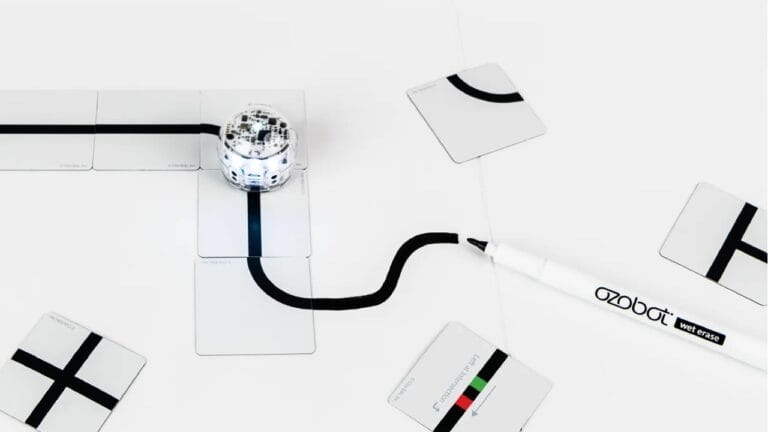
Color Codes are a way to program an Ozobot without a screen. Draw them with markers or place them as stickers on a black line, and the robot responds as soon as it drives over them. This overview includes all official codes, their color sequences, and what the robot does. We’ve checked each sequence against Ozobot’s Color Code guides for Evo and Ari (Evo Color Code Guide, Ari Color Codes Guide).
What is an Ozobot Color Code?
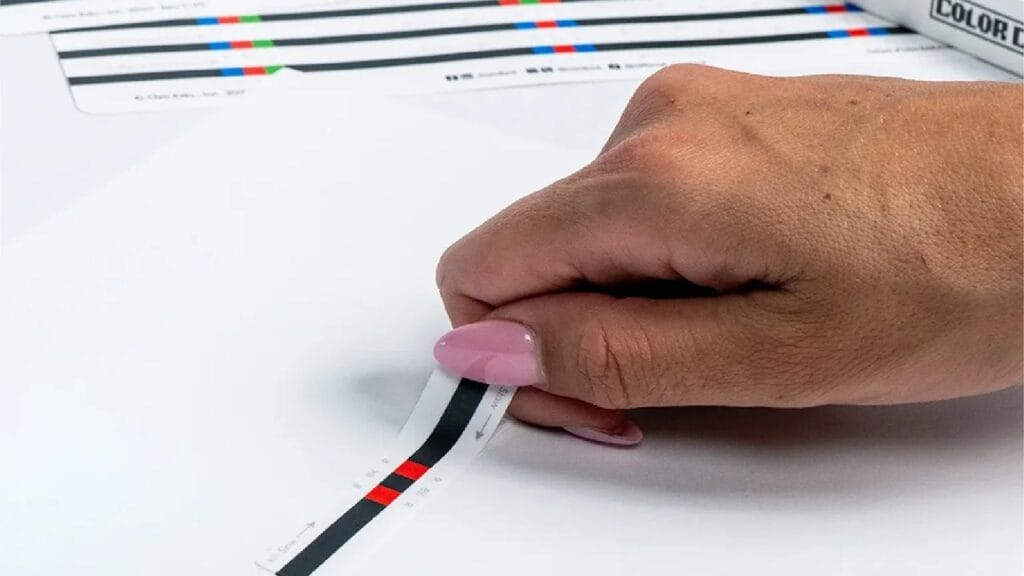
A Color Code is a sequence of two to four colored squares in a black line. Optical sensors are located on the underside of the robot: the front sensors follow the line, while a sensor behind them reads the colors. Ozobot uses four specific colors:
| Color | Hex code | Abbreviation in the guides |
|---|---|---|
| Green | #49B749 | G |
| Blue | #1183C6 | B |
| Red | #EC2027 | R |
| Black | #000000 | BK |
If you draw them yourself, use Ozobot markers: they're made for this. If you print your codes, use these hex codes, white paper, and actual size (100 %).
How do you read an Ozobot Color Code?
The robot reads a code in the direction it’s traveling, from the first square to the last. The tables below therefore show the sequence in the order the robot encounters it. This is important because some codes are mirror images of each other. Red – green – blue is slow motion. If the robot drives over it in the other direction, it reads blue – green – red, which is super turbo.
Three rules make a code readable:
- Each square is 5 × 5 mm (4.5 to 6 mm is allowed), the same width as the line.
- No gaps and no overlap between the squares.
- Black before and after. Only two-color codes go at the end of a line, with white after them.
For exact placement rules (distance from turns, intersections, and other codes), see Drawing Lines for Ozobot.
All Color Codes at a glance
We divide the 29 official codes into six categories. The official English name appears in parentheses after the Dutch name, which is helpful if you have an English-language card alongside.
Speed
| Code | Color sequence | What does the robot do? |
|---|---|---|
| Snail Pace (Short Super Slow) | red – green – blue | Moves very slowly for 3 seconds |
| Slow (Slow) | red – black – red | Moves slowly until the next speed code |
| Cruise (Cruise) | green – black – green | Standard speed |
| Fast (Fast) | blue – black – blue | Moves quickly until the next speed code |
| Turbo (Turbo) | blue – green – blue | Moves extra quickly until the next speed code |
| Super Turbo (Nitro Boost) | blue – green – red | Moves at top speed for 3 seconds |
Slow, fast, and turbo remain in effect until the robot reads a new speed code or turns off.
Direction
| Code | Color sequence | What does the robot do? |
|---|---|---|
| Turn Left | green – black – red | Turns left at the next intersection |
| Go Straight | blue – black – red | Goes straight at the next intersection |
| Turn Right | blue – red – green | Turns right at the next intersection |
| Line Switch Left | green – red – green | Turns 90° left immediately, moves to a new line, and chooses a random direction there |
| Line Switch Straight | green – blue – green | Moves straight to a new line after reaching the end of the line |
| Line Switch Right | red – green – red | Turns 90° right immediately, moves to a new line, and chooses a random direction there |
| U-Turn | blue – red – blue | Turns around in the middle of the line and drives back |
| U-Turn, line end | blue – red | Turns around at the end of the line |
Without a direction code, the robot chooses a random direction at an intersection. If it can’t go in the requested direction, it also chooses randomly.
Timers
| Code | Color sequence | What does the robot do? |
|---|---|---|
| Pause (3 s) | red – blue – red | Stops for 3 seconds, then continues |
| Timer On (30 s) | red – black – blue – green | Moves and reads codes for another 30 seconds, blinks every second, and then turns off |
| Timer Off | green – blue – black – red | Stops the timer |
Special moves
| Code | Color sequence | What does the robot do? |
|---|---|---|
| Tornado | red – green – red – green | Spins around four times, getting faster each time, then continues |
| Zigzag | blue – black – green – red | Zigzags right-left-right-left, then continues straight |
| Spin | green – red – green – red | Spins around twice at a constant speed, then continues |
| Move backward (Backwalk) | red – green – black – blue | Turns around, wiggles backward for one second, turns back around, and continues |
Counters
| Code | Color sequence | What does the robot do? |
|---|---|---|
| X Counter (Enable X-ing Counter) | green – red – blue – green | Stops after five intersections (T or plus intersections) |
| Turn Counter (Enable Turn Counter) | red – blue – green – blue | Stops after five intersections where it turns; going straight does not count |
| Path Color Counter (Enable Path Color Counter) | red – green – blue – red | Stops after five color changes within the line itself |
| Point Counter (Enable Point Counter) | red – blue – red – green | Counts down from five points |
| +1 (Point +1) | red – blue – green | Adds one point (up to five) |
| −1 (Point −1) | green – blue – red | Takes away one point; the robot stops after the fifth time |
When a counter runs out, the robot performs a final move, stops, and flashes red. The Path Color Counter only counts changes between colored line segments, for example, from red to green. Transitions to and from black and segments shorter than 2 cm do not count. To reset the Point Counter, turn the robot off and back on.
Winning and ending
| Code | Color sequence | What does the robot do? |
|---|---|---|
| Play Again (Win/Exit, Play Again) | green – blue | Celebrates, then follows the line again |
| Game Over (Win/Exit, Game Over) | green – red | Celebrates and stops |
Both codes have two colors, so they go at the end of a line, with white after them.
Do Color Codes work the same on Bit+, Evo, and Ari?
Yes. The color code cards in the official guides for Evo and Ari are identical, and Ozobot lists the color code lessons as suitable for Bit, Bit+, Evo, and Ari. Two differences are worth knowing:
- Ari needs more space. According to the Ari guide, parallel lines must be at least 38 mm apart (Evo: 25 mm), and Ari needs at least 76 mm of straight line after a zigzag or backward code (Evo: 64 mm).
- Ari has its own screen and is calibrated differently from Bit+ and Evo. All three read the codes the same way.
Where can you find a printable Color Code chart?
Ozobot publishes the card as a PDF: the official color code card in the Evo Color Code Guide (page 6, in English, with the abbreviations G, B, R, and BK under each square). Print it in color at actual size. The guide also includes calibration circles and 5 × 5 mm graph paper for practicing codes.
Drawing them yourself can be difficult for young students. Color Code Stickers or Color Code Magnets can help: they’re the right size and color, and you can rearrange them.
Tip for students with color vision deficiency: The official card has a letter under each square. Label the markers with the same letters so everyone can participate.
How do you teach Color Codes in the classroom?
Start with one type of code at a time.
First, have students predict what the robot will do, then test it, and finally improve their code. This gives them practice with the fundamentals of coding: input, output, and debugging.
Frequently asked questions
How many Ozobot Color Codes are there?
There are 29 official Color Codes. We group them into six categories: speed (6), direction (8), timers (3), special moves (4), counters (6), and wins/end (2).
Does it matter which direction the robot reads a code from?
Yes. The robot reads the colors in the order it drives over them. A code read from the other direction is a different code or no code at all. Red – green – blue is snail pace; blue – green – red is super turbo.
Why isn’t my Ozobot responding to a Color Code?
Usually, the square is too small or too large, there’s a gap between the squares, the code is too close to a turn or intersection, or the robot hasn’t been calibrated. Drawing Lines for Ozobot provides an overview of causes and solutions.
Can I draw Color Codes with regular markers?
We don’t recommend it. The robot recognizes the four Ozobot colors best. Regular markers, colored pencils, crayons, and highlighters can vary in color or coverage. Use Ozobot markers, Color Code Stickers, or printed codes in the official hex colors.
What’s the difference between the X Counter, Turn Counter, and Color Code Counter?
All three make the robot stop after five counts. The X Counter counts every intersection the robot drives over, the Turn Counter counts only intersections where it turns, and the Color Code Counter counts changes between colored line segments (for example, from a red segment to a green one).